Best Free Video Compressors With No Watermark (2026)
March 30, 20265 min read
Why Do Most Free Tools Add Watermarks?
Let's be real — running a video compression service costs money. Servers, bandwidth, processing power... it all adds up. So most free tools use watermarks as a nudge toward their paid plans. It's basically a freemium strategy: give you a taste of what the tool can do, then put their branding on your output unless you pay. Some tools are sneakier about it — they only add watermarks on videos longer than 2 minutes or above a certain resolution. The good news? Not every service does this, and some genuinely free alternatives exist.
What to Look for in a Video Compressor
Beyond the obvious no-watermark requirement, there are a few things worth checking. Privacy matters — does the tool upload your video to their servers, or does it process locally? Format support is another big one; you want something that handles MP4, WebM, and MOV at minimum. Look at the compression options too. Can you control the output quality or bitrate? Some tools only offer generic "high/medium/low" presets, which doesn't give you much control. File size limits are another gotcha — many free tools cap uploads at 100MB or 500MB.
Top Free Options Compared
There are several solid choices out there right now. Browser-based tools like ToolPic stand out because they process everything on your device — your video never leaves your computer, which is a huge privacy win. HandBrake is a great desktop option if you don't mind installing software. VLC can also compress videos, though the interface isn't exactly intuitive for that. Cloud-based options exist too, but remember: if your video goes to their server, someone else has access to it. For sensitive content — client recordings, personal videos — local processing is the way to go.
How to Compress Without Losing Quality
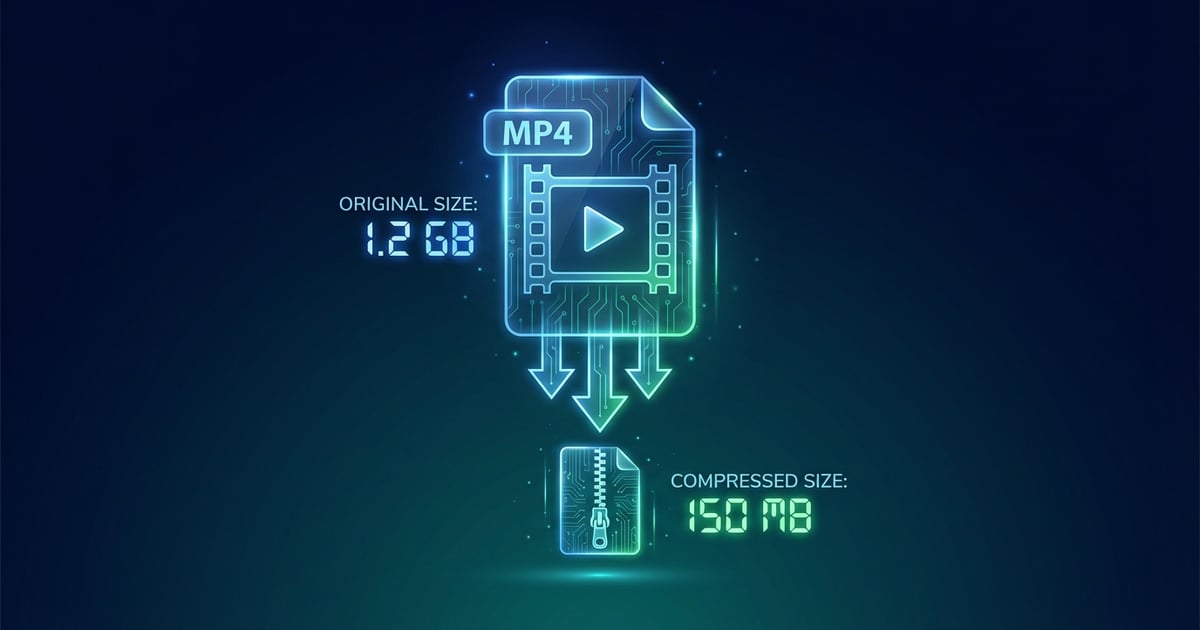
Here's the thing most people get wrong: compression always involves some quality loss. The trick is making that loss invisible to the human eye. Start by lowering the bitrate gradually — going from 10Mbps to 5Mbps often cuts file size in half with barely noticeable quality change. Reducing resolution helps too if your video doesn't need to be 4K. Going from 4K to 1080p can shrink files by 75%. Use H.264 or H.265 codec for the best quality-to-size ratio. And here's a pro tip: two-pass encoding takes longer but produces better results at lower bitrates.