Best GPT Image 2 Prompts: 30+ Viral Examples From OpenAI's New Model (2026)
April 21, 20268 min read
Why GPT Image 2 Prompts Are Different
If you have been writing prompts for DALL-E 3, Midjourney, or GPT Image 1.5, the good news is GPT Image 2 mostly plays by the same rules. The surprising part is how much better OpenAI's GPT Image 2 responds to dense, specific, multi-clause prompts. With older models, stuffing too much detail into one prompt often caused it to drop elements. GPT Image 2 handles 200-word prompts that describe scene, subject, lighting, camera angle, and color palette all at once — and actually renders every element. The other shift is text. You can now write GPT Image 2 prompts like 'a coffee shop sign that reads BLUE BOTTLE, with a menu board underneath listing espresso, cappuccino, and cortado' and OpenAI's model will reproduce that text cleanly. That was not reliable before GPT Image 2. Every prompt category below takes advantage of one of these GPT Image 2 strengths.
Top Viral GPT Image 2 Prompts From X/Twitter
The most-shared GPT Image 2 example on X was a first-person Minecraft scene set in Manhattan — the GPT Image 2 prompt mixed a game aesthetic with real geography and nailed both. Another hit was a fake 'Claude Opus 5 Internal Document' rendered inside a Minecraft world, which racked up 439K views. A Times Square GPT Image 2 prompt with 150+ diverse pedestrians, yellow taxis, wet pavement, and specular highlights went viral because the OpenAI model handled every element and the text on signs stayed correctly spelled. Period-piece GPT Image 2 prompts also trended: 'Oda Nobunaga composing an X post the night before the Honno-ji Incident' was one of the early viral examples, combining historical accuracy with a modern social-media UI layout. The common thread across viral GPT Image 2 prompts: scenes that OpenAI has to build from world knowledge, not just copy from training data.
Portrait & Character GPT Image 2 Prompts
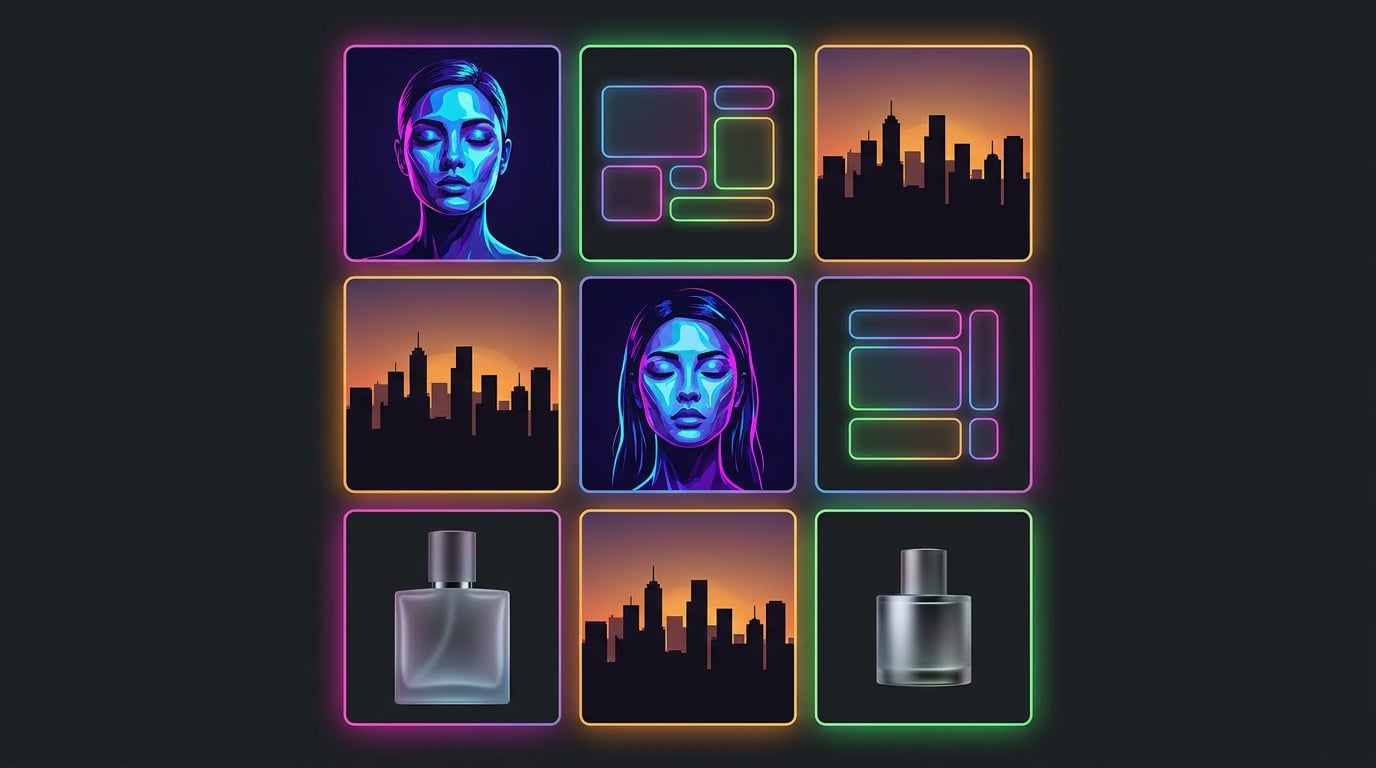
For portraits, GPT Image 2's persistent character embeddings mean you can keep the same face across multiple OpenAI renders. Start your GPT Image 2 prompt with a detailed character description — age, ethnicity, distinctive features, clothing style — then add lighting and mood. Example GPT Image 2 prompt: 'Editorial portrait of a 34-year-old Korean woman with cropped black hair and hexagonal silver earrings, soft window light from left, shallow depth of field, muted teal and peach color grading, shot on 85mm lens at f/1.8.' In GPT Image 2 follow-ups, describe the exact same features to maintain consistency across renders. For stylized characters, reference specific artists or eras: 'Mucha-style art nouveau', 'Studio Ghibli background', '1980s anime cel-shaded'. GPT Image 2 is noticeably better than GPT Image 1.5 at respecting these style tags from OpenAI.
UI Mockup & Product GPT Image 2 Prompts
UI mockups are where GPT Image 2 really separates itself from older OpenAI models. Try this GPT Image 2 prompt: 'A clean iOS app screen for a meditation app, showing the daily session screen. Top bar with back arrow and settings icon. Center: large circular timer showing 12:34 remaining. Below: three option chips labeled Breath, Body Scan, Sleep. Bottom tab bar with Home, Sessions, Profile tabs.' In GPT Image 2 the text will render correctly, the layout will make sense, and spacing will be believable. For product shots in GPT Image 2: 'Minimalist product photo of a matte black ceramic coffee cup on concrete surface, soft directional light from above-left, subtle steam rising, shallow depth of field, slight grain, editorial magazine style.' GPT Image 2 handles material rendering — matte vs gloss, ceramic vs metal — noticeably better than previous OpenAI image models.
Text-Heavy GPT Image 2 Prompts (Posters, Signs, Documents)
This is the category where GPT Image 2's text rendering breakthrough really pays off. GPT Image 2 poster prompt example: 'Vintage travel poster for Kyoto, 1950s style. Large serif text at top reads KYOTO. Subtitle in smaller text reads Ancient Capital of Japan. Bottom bar text reads Japan National Railways. Illustration shows cherry blossoms and a five-story pagoda.' GPT Image 2 will render all three text blocks correctly from OpenAI — that was nearly impossible before. For magazine covers, news tickers, street signs, or storefronts in GPT Image 2, always spell out exactly what text should appear, in quotes, with font cues if you care ('sans-serif', 'script', 'condensed caps'). The more specific the text placement in your GPT Image 2 prompt, the more reliable the OpenAI output.
Getting Perfect Results: GPT Image 2 Prompt Patterns That Work
Three patterns consistently produce strong GPT Image 2 output. First: scene then subject then style. 'Morning fog in a Vietnamese coffee plantation, a young farmer pouring beans into a metal drum, golden hour light, hyperrealistic cinematic style.' Second: explicit resolution and aspect ratio in your GPT Image 2 prompt. Add '16:9 aspect ratio, 4K detail, sharp focus on subject'. GPT Image 2 actually respects these now. Third: negative constraints. 'No text, no watermark, no logo' prevents OpenAI's GPT Image 2 from adding spurious signage. If you are generating multiple GPT Image 2 variations, reuse the same seed or reference image to keep style consistent. Once you get a GPT Image 2 output you like, download and post-process with ToolPic — compress the 4K PNG to under 300KB with the image compressor, crop to your target dimensions with the image crop tool, or strip the background with the bg-remove tool if you need a cutout of your GPT Image 2 render.