How to Compress Images for Email: Size Limits & Best Practices
March 24, 20264 min read
Email Attachment Size Limits You Need to Know
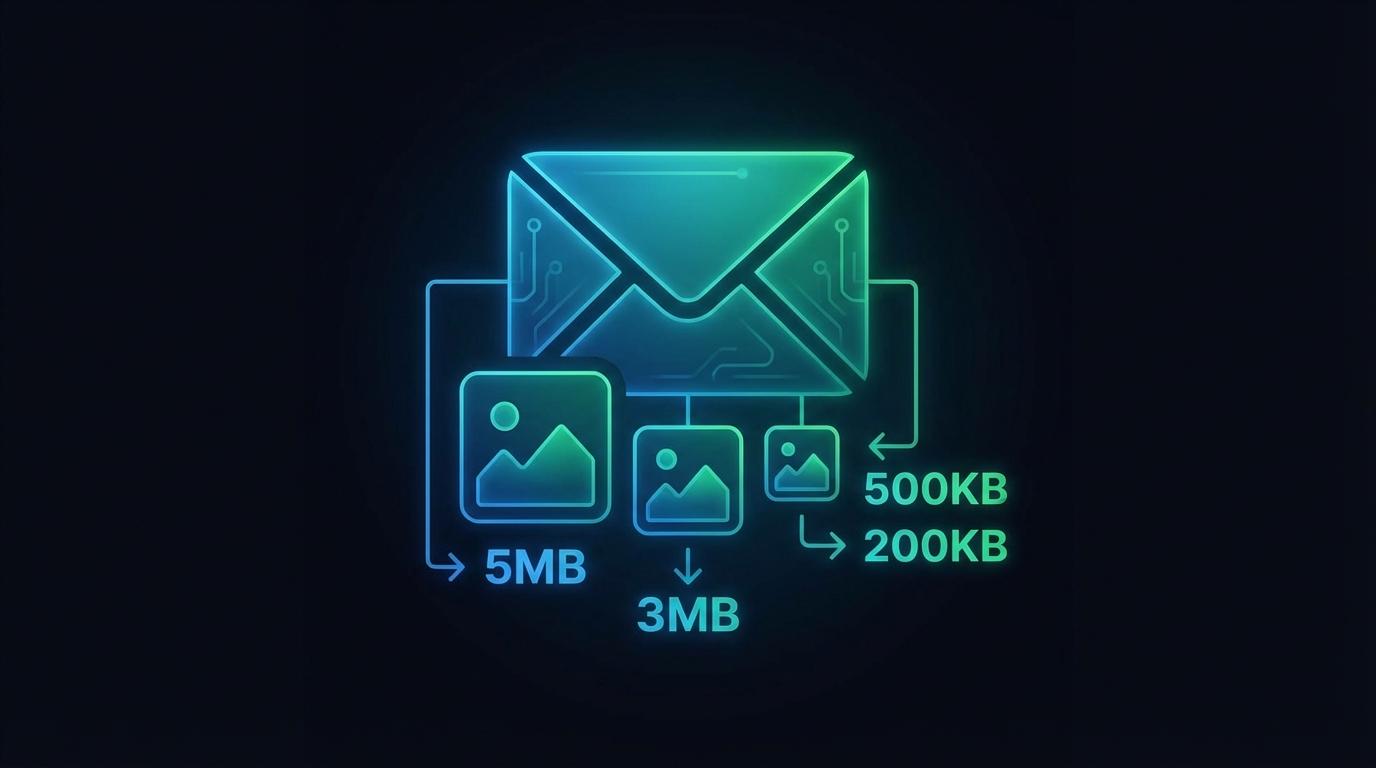
Every email provider enforces attachment size limits that can prevent you from sending high-resolution photos. Gmail allows up to 25MB total per email, while Outlook and Hotmail cap at 20MB. Yahoo Mail offers 25MB, and corporate email servers often restrict attachments to just 10MB or even 5MB. These limits apply to the total size of all attachments combined, not per file. A single photo from a modern smartphone camera can easily be 5-10MB, meaning you might only be able to attach two or three uncompressed photos before hitting the limit.
Best Compression Settings for Email
For email attachments, JPEG at 80 percent quality offers the best balance between file size and visual quality. At this setting, a typical 5MB smartphone photo shrinks to under 500KB with virtually no visible difference. For documents and screenshots, PNG compressed at maximum level works well because it preserves text sharpness. When sending photos for viewing on screen only, resize them to 1920 pixels on the longest edge since recipients rarely need the full camera resolution for email viewing.
Batch Compression for Multiple Photos
When you need to send multiple images, batch compression saves significant time. Instead of compressing each photo individually, use a tool that accepts multiple files at once and applies consistent settings across all of them. Aim for each image to be under 500KB so you can fit 30 or more photos within a 25MB Gmail limit. If you regularly send photo batches, consider converting them to WebP format, which provides 25-35 percent smaller files than JPEG at equivalent quality.
Compressing Images for Email with ToolPic
ToolPic's Image Compressor is ideal for preparing email attachments. Drag and drop multiple images at once, and the tool compresses them simultaneously in your browser. Use the quality slider to target your desired file size, and download all compressed images with a single click. Because everything runs locally, there are no upload wait times even for large batches. For the best results, set quality to 80 percent for photos and use the batch download feature to get all compressed files at once.