How to Resize an Image Without Losing Quality
March 19, 20265 min read
Why Resizing Often Ruins Image Quality
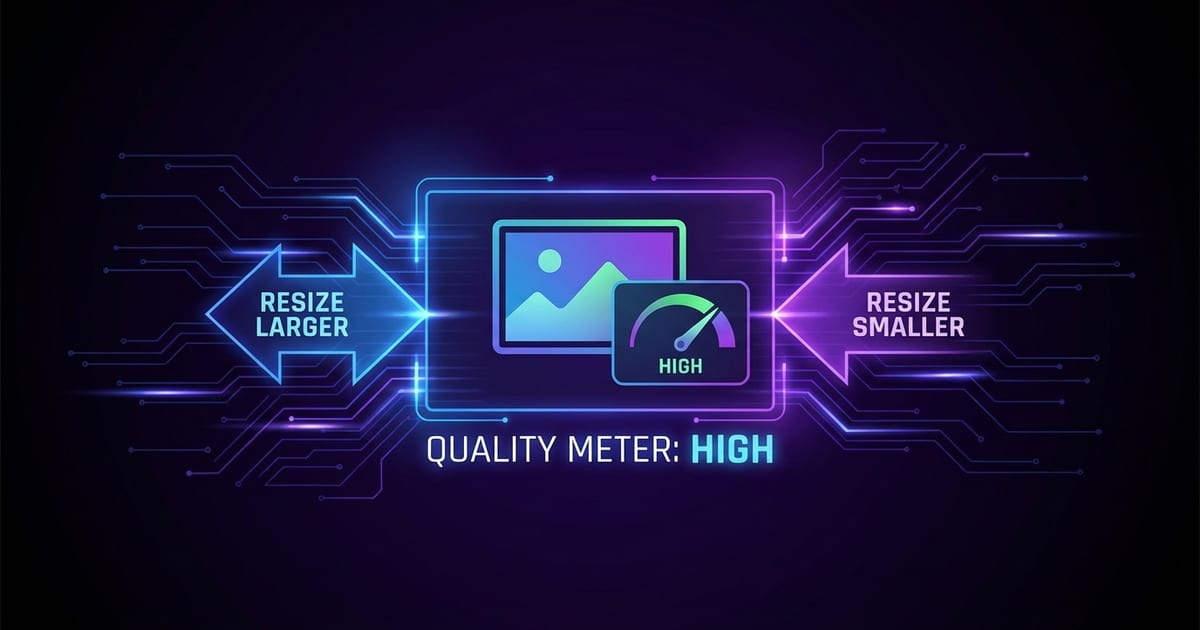
When you resize an image, the software must either add or remove pixels. Enlarging an image means creating new pixels that did not exist in the original, which introduces blurriness because the software is guessing what those pixels should look like. Shrinking an image discards pixels, which can lose fine details and create artifacts if not done carefully.
Best Practices for Lossless Resizing
Always work from the original high-resolution file. If you need multiple sizes of the same image, generate each one directly from the original rather than resizing an already resized copy. Each generation of resizing compounds quality loss, so going back to the source for every variant produces the sharpest results.
Cropping vs Resizing: When to Use Each
Cropping and resizing serve different purposes, and understanding when to use each is key to maintaining quality. Cropping removes unwanted areas from the edges of an image without changing the resolution of the remaining content. The cropped area retains its original pixel density and sharpness because no resampling occurs.
Resizing Images with ToolPic
Open ToolPic's Image Crop tool and upload your image. The crop tool lets you select the exact portion of the image you want to keep, removing distracting backgrounds or empty space. Choose a preset aspect ratio like 16:9, 4:3, or 1:1, or set custom dimensions to match your exact requirements.