How to Combine Photos Side by Side Online (Free & Easy)
March 30, 20265 min read

Why Combine Photos Side by Side?
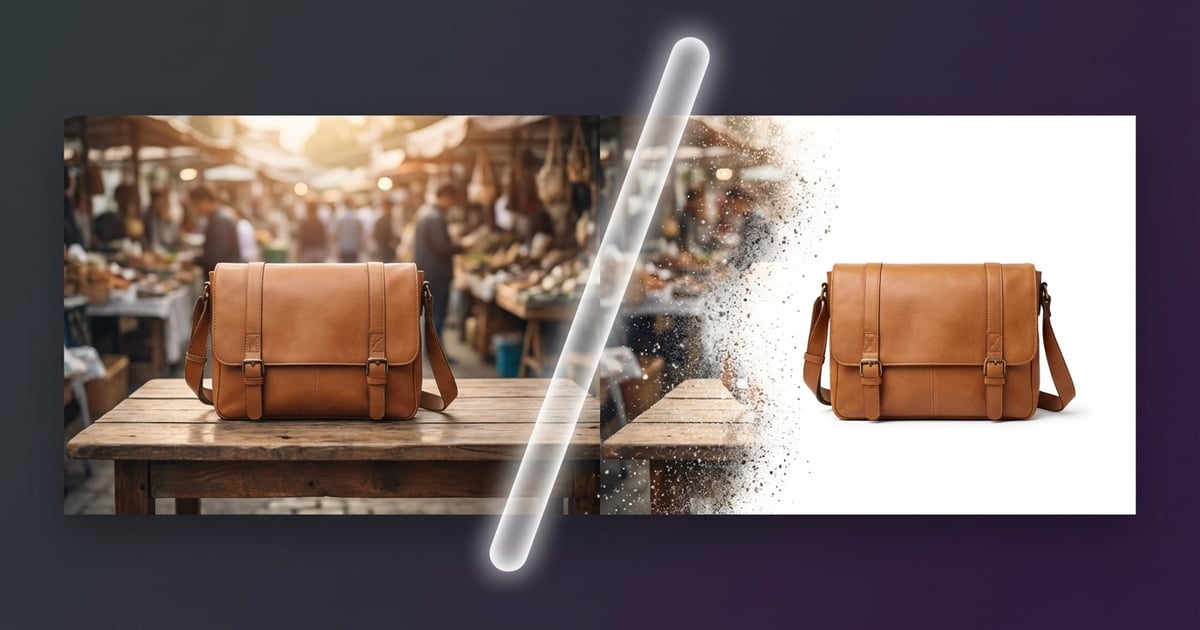
Placing photos side by side is one of the simplest yet most effective ways to tell a visual story. Think before-and-after transformations, product comparisons, or showing progress over time. Real estate agents use it to show renovation results. Fitness creators love it for transformation posts. It also works great for social media — Instagram carousels and Facebook posts with comparison images tend to get way more engagement than single shots. Honestly, once you start merging photos this way, you'll find uses everywhere.
Different Ways to Combine Photos
There are three main layouts people use when combining photos. Horizontal (side by side) is the most common — great for comparisons and before/after shots. Vertical stacking works well for Pinterest pins or tall infographics. Then there's grid layout, where you arrange 4, 6, or even 9 images in a collage. Each layout serves a different purpose. For social media, horizontal usually works best on Twitter and Facebook, while vertical is ideal for Pinterest and Instagram Stories. Pick the layout that fits your platform and your story.
Tips for Getting the Best Results
A few small things make a huge difference when merging photos. First, try to use images that are roughly the same size — a tiny photo next to a massive one looks awkward. Second, keep the lighting consistent across photos. If one image is bright and warm while the other is dark and cool, the combination feels off. Adding a thin border or gap between photos helps them read as separate images rather than one confusing picture. And don't forget about aspect ratios — square images merge more cleanly than mixing portrait and landscape orientations.
Step-by-Step: Using ToolPic's Image Merge Tool
Here's how to do it with ToolPic's free online tool. Open the Image Merge tool and drag in your photos — you can add two or more at once. Choose your layout: horizontal, vertical, or grid. Adjust spacing between images if you want borders or gaps. Preview the result and tweak the order by dragging thumbnails around. When you're happy with it, hit download. The whole process happens in your browser, so your photos never get uploaded to any server. It takes about 30 seconds from start to finish, which honestly beats opening Photoshop every time.